In this section, we will show you how to use FusionCharts XT with CFM to plot data collected in forms.
We will build a simple restaurant sales example, where the user will enter the items sold by a restaurant in a given week. This data will be submitted in a form to the server. We will acquire this data and plot in on a chart. For the sake of simplicity, we will not process anything on this data. However, your real life applications might process data before presenting it on the chart.
Before you go further with this page, we recommend you to please see the previous section, Basic Examples, as we start off from concepts explained in that page.
The code examples contained in this page are present in Download Package > Code > CFM > FormBased folder.
The form is contained in Default.cfm and looks as under:
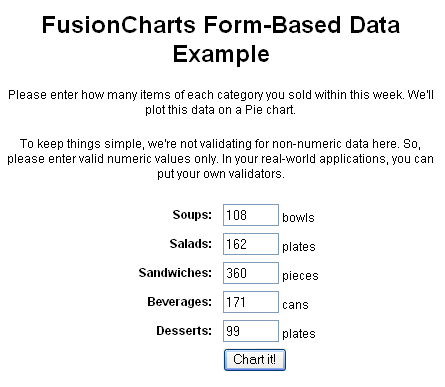
It's a very simple form which submits to Chart.cfm. We are not going into the code of the form, you can directly open the source from download and see it.
The work of requesting the data from submitted form and creating the chart is done in Chart.cfm, present in the same folder. It contains the following code:
<HTML>
      <HEAD>
      <TITLE>
      FusionCharts XT - Form Based Data Charting Example
      </TITLE>
   <SCRIPT LANGUAGE="Javascript" SRC="../../FusionCharts/FusionCharts.js"></SCRIPT>
</HEAD>
<cfinclude template="../Includes/FusionCharts.cfm">
<BODY>
         <!--- We first request the data from the form (Default.cfm) --->

   <cfset intSoups = Val(Form.Soups)>
   <cfset intSalads = Val(Form.Salads)>
   <cfset intSandwiches = Val(Form.Sandwiches)>
   <cfset intBeverages = Val(Form.Beverages)>
   <cfset intDesserts = Val(Form.Desserts)>

     <!---
     In this example, we are directly showing this data back on chart.
     In your apps, you can do the required processing and then show the
     relevant data only.

     Now that we have the data in variables, we need to convert this into XML.
     The simplest method to convert data into XML is using string concatenation.
     --->
          <!--- Initialize <chart> element --->
   <cfset strXML = "<chart caption='Sales by Product Category' subCaption='For this week' showPercentValues='1' pieSliceDepth='30' showBorder='1'>">
          <!--- Add all data --->
   <cfset strXML = strXML & "<set label='Soups' value='" & intSoups & "' />">
   <cfset strXML = strXML & "<set label='Salads' value='" & intSalads & "' />">
   <cfset strXML = strXML & "<set label='Sandwiches' value='" & intSandwiches & "' />">
   <cfset strXML = strXML & "<set label='Beverages' value='" & intBeverages & "' />">
   <cfset strXML = strXML & "<set label='Desserts' value='" & intDesserts & "' />">
          <!--- Close <chart> element --->
   <cfset strXML = strXML & "</chart>">

   <!--- Create the chart - Pie 3D Chart with data from strXML --->
   <cfoutput>#renderChart("../../FusionCharts/Pie3D.swf", "", strXML, "Sales", 500, 300, false, false)#</cfoutput>
</BODY>
</HTML>
As you can see in the above code, we are doing the following:
- Including FusionCharts.js and FusionCharts.cfm in this page.
- Requesting data from the submitted form and storing it in local variables
- Creating an XML data document using string concatenation and storing it in strXML variable
- Creating a Pie 3D chart using the renderChart() function and passing strXML as Data String.
When you finally run the code, you will see a chart as under:
